Novedades

Registro de cambios

Nuevas funciones, mejoras y correcciones.Lanzamos mejoras cada semana.

Page 10 of 17 · 165 updates

Latest updates
Mar 15, 2026

Affiliate Program

New

  • Affiliate Program - Earn commission by sharing Playcode. Share your unique referral link, and when someone subscribes, you earn a commission on their first payment. Track clicks, registrations, and purchases in real time from your affiliate dashboard.
  • Multiple Referral Codes - Create different codes for different campaigns (YouTube, Twitter, blog, etc.) and track which ones perform best.
  • Affiliate Dashboard - Full funnel analytics: clicks, registrations, purchases, earnings, and payout history. Available in Settings > Affiliate.
Mar 6, 2026

Version 2026.5.15

New

  • AI Image Generation - Generate images, icons, logos, and illustrations right from the chat. Just describe what you need and the AI creates it using Google Gemini's native image generation. Supports any aspect ratio, up to 4K resolution, and multiple style directions.
  • Image Editing with References - Attach existing images and ask the AI to edit them: change colors, add elements, remove backgrounds, adjust style. The AI sees your image and makes targeted modifications.
  • Background Removal - Automatically remove white backgrounds from generated icons and logos, producing transparent PNGs ready for your website.
  • Image Processing - Resize, compress, and convert images between formats (WebP, AVIF, PNG, JPEG, GIF, ICO) through the chat. The AI optimizes your images for the web automatically - just say "compress this image" or "make me a favicon".
Mar 2, 2026

Version 2026.5.7

Improvements

  • Smarter file handling - The AI agent now sees file sizes before reading them and reads files in smaller chunks. No more wasting credits on loading giant files that don't fit in context.
  • Faster AI responses - Improved prompt caching for Claude models reduces latency and cost on follow-up messages in long conversations.

Fixes

  • Fixed AI agent loops - Resolved an issue where the AI could enter a repetitive loop after long conversations, re-reading the same files and burning credits. A new loop detection system automatically breaks the cycle.
Mar 2, 2026

Version 2026.5.6

New

  • Website Screenshot Tool - The AI agent can now capture visual screenshots of any website. Say "make me a site like competitor.com" and the AI actually sees the design, layout, colors, and typography - not just the HTML text.
  • Full-page & element capture - Screenshots support desktop/mobile viewports, full-page scrolling capture, specific element targeting via CSS selector, dark mode, and retina resolution.
  • Vision-powered tool results - Tool results can now include images and files as attachments. The AI sees screenshots as actual images (via vision), not just text descriptions. This works across all AI models with vision support.

Under the Hood

  • SSRF protection - Screenshot URLs are validated against private networks, cloud metadata endpoints, and DNS rebinding attacks.
  • Clean captures - Cookie banners, ads, and animations are automatically removed for clean screenshots.
Mar 2, 2026

Version 2026.5.5

New

  • Native Tailwind CSS v4 - Tailwind CSS is now compiled at build time instead of loading the 266KB browser compiler on every preview refresh. This means dramatically faster previews, especially on mobile devices.
  • Zero-config setup - Just add @import "tailwindcss"; to any CSS file and start using Tailwind classes. No PostCSS config, no build tools setup needed.
  • Smart class scanning - Only the CSS you actually use gets generated. The compiler scans your HTML, JSX, Vue, and Svelte files for class names and produces minimal, optimized CSS.
  • Incremental builds - Compiled CSS is cached between builds. If your classes haven't changed, the preview updates instantly.

Improvements

  • Updated all templates - All 32 Tailwind-powered templates now use native compilation instead of the CDN script.
  • Backward compatible - Existing projects using the Tailwind CDN script tag will automatically use the native compiler instead.
Mar 2, 2026

Version 2026.5.4

New

  • GPT-5.3 Codex - The latest agentic coding model from OpenAI. Combines frontier coding with research and tool use capabilities.
  • Claude Sonnet 4.6 - The newest Sonnet with adaptive thinking and 64K output tokens.
  • Claude Opus 4.6 - Upgraded to 128K output tokens with 1M context window support.
  • Gemini 3.1 Pro - Replaces the deprecated Gemini 3 Pro Preview.
  • Configurable Model Preferences - Choose which AI models to use for Economy (Fast) and Quality (Pro) modes from Preferences > AI Model. Your choices are saved to your account.
Mar 2, 2026

Version 2026.5.3

New

  • Image Attachments - Attach images directly to your chat messages. Paste screenshots with Cmd+V, pick files, or drag and drop. The AI can see and analyze your images - describe designs, debug UI issues, or use attached images in your project.
  • PDF Attachments - Attach PDF documents to your chat for the AI to read and reference while building your project.
  • Web Browsing - The AI can now fetch web pages and search the internet. Share a URL and it will read the content, or ask it to research topics, find documentation, or look up examples.

Improvements

  • Economy Mode by Default - New chats now start in Economy mode (Gemini) for the lowest cost. Switch to Smart or Pro anytime from the mode selector.
  • Smarter Chat Names - The AI automatically renames your chat to match the topic once it understands what you're building.
Mar 1, 2026

Version 2026.5.2

New

  • Responsive Preview Mode - Switch between phone, tablet, and desktop views right in the preview toolbar. See exactly how your project looks at different screen sizes without leaving the editor.

Fixes

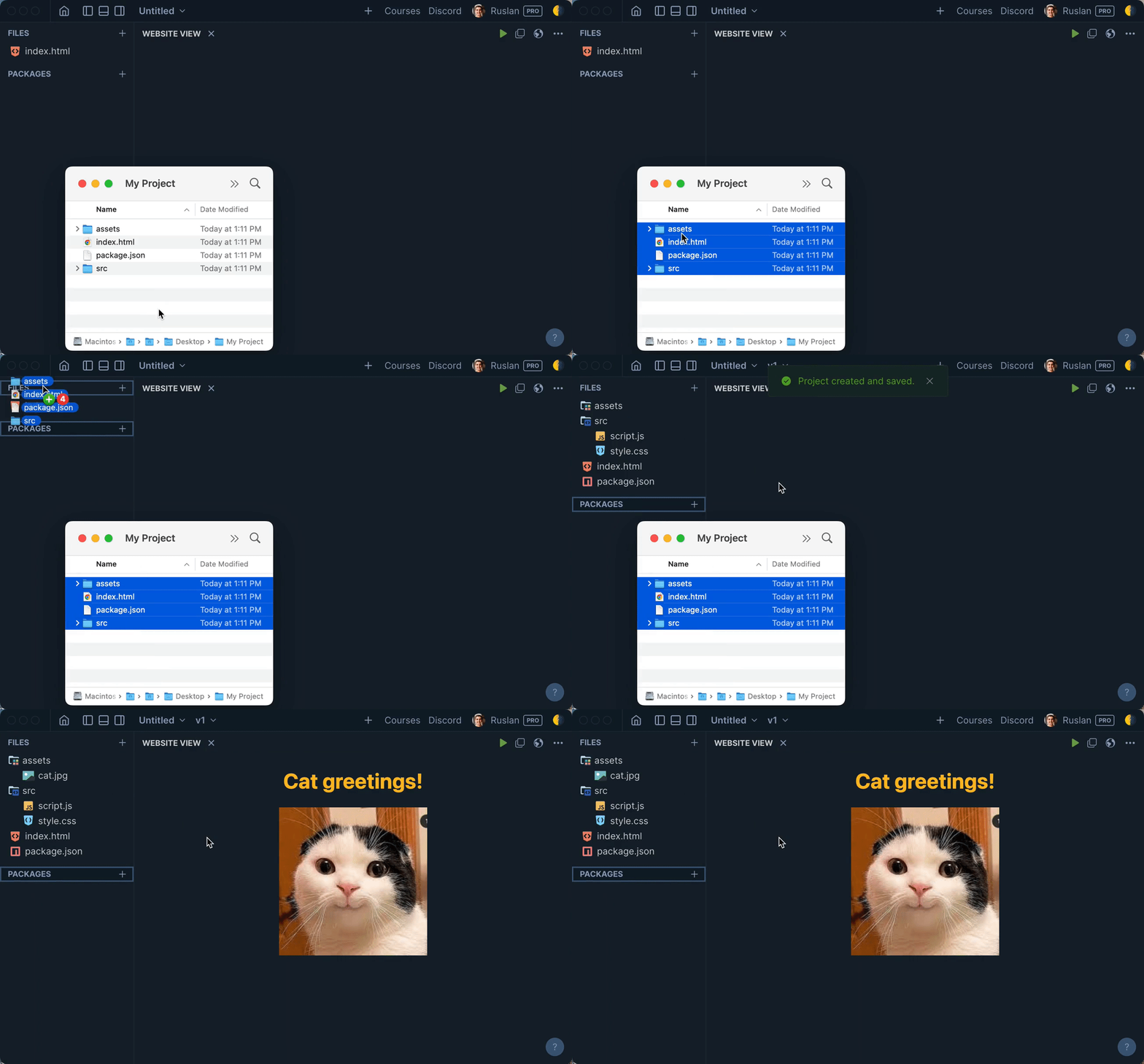
  • Folder Drag & Drop Preserves Structure - Dragging a folder into your project now correctly places asset files (images, fonts, etc.) inside their original subfolders. Previously, all assets were flattened into the root directory.
Mar 1, 2026

Version 2026.5.1

New

  • Colorful Redesign - The entire interface has been refreshed with a vibrant, colorful design. Every screen, button, and panel now feels more polished and visually engaging.
  • Smarter AI Agent - The AI no longer tries to build everything at once. It now starts by suggesting a wireframe, explains its approach, and builds your project step by step. The result is working websites and interfaces with functional buttons, real navigation, and detailed layouts - not just a pretty picture.
  • AI Modes: Economy, Smart & Pro - Choose how AI works for you. Economy uses Gemini for the lowest cost. Smart (recommended) automatically picks the best model for each task - fast and cheap for reading code, premium for writing it. Pro uses Claude for everything - fastest responses and best quality.
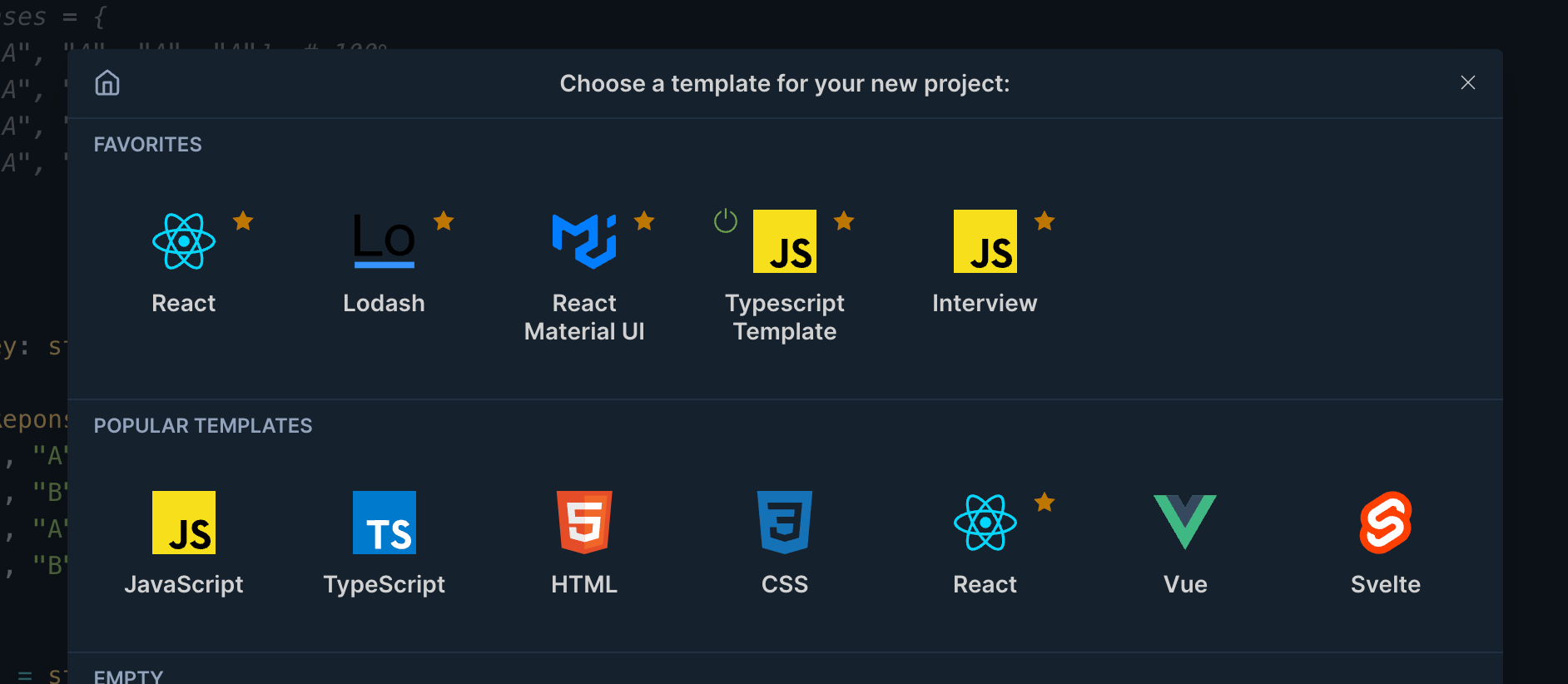
  • Empty React Template - Start a React project from scratch with just the bare minimum: React, ReactDOM, and a blank component. No Tailwind, no example app - just a clean slate for your own code.

Improvements

  • Mobile Experience - Completely reworked for phones. Every screen is clean, readable, and easy to use on small displays. No wasted space, no clipped elements - everything is crisp and well-organized.
  • Unified Menu - The project menu and user menu are now combined into one. Everything you need - project actions, sharing, preferences, profile, billing - is in a single, clear menu. Simpler names, better organization.
Feb 2, 2026

Version 2026.4.118

New

  • Visual Editing Mode - Click the "Visual edits" button in the preview toolbar to enter visual editing mode. Hover over any element to see it highlighted, then click to select it. Make changes directly in the properties panel or edit text inline by clicking on it.
  • Inline Text Editing - Double-click any text element in the preview to edit it directly. Your changes are tracked and can be applied to your code with a single click.
  • Properties Panel - Adjust colors, typography, spacing, borders, and effects for any selected element. Changes preview instantly in real-time.
  • Batch Changes - Make multiple visual edits across different elements, then apply them all at once. The AI knows exactly which file and line each change belongs to.
  • Ask AI from Preview - Select any element and type a request in the popup to ask AI to modify it. Perfect for quick tweaks like "make this button bigger" or "change the color scheme".