A useful Chrome extension is a small product, not just a popup. You need one clear browser job, a Manifest V3 permission boundary, ordinary and protected-page states, persistent data rules, a real toolbar smoke test, an integrity-checked ZIP, and accurate Chrome Web Store disclosures if you distribute it.
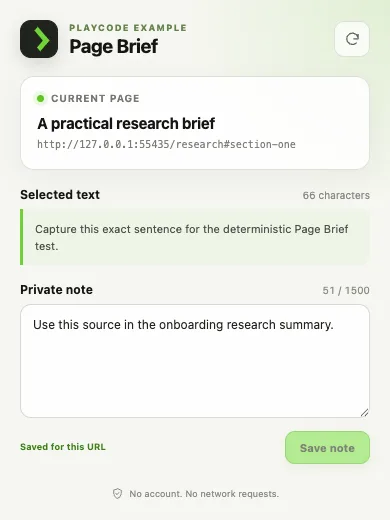
This tutorial uses Page Brief, a reproduced extension that captures a page title, URL, and selected text after a toolbar action, then stores one private note per normalized URL in the local Chrome profile. The example requests no persistent host access and makes no network requests.
If AI drafts the extension, keep the same engineering gate. Require a file map, permission rationale, trust-boundary explanation, and test plan before code; then treat generated and compiled output as untrusted until the permission, remote-code, secret, package, and browser checks pass. AI can accelerate the draft, but it does not approve the release.

QUICK ANSWER
How do you build a Chrome extension?
Define one user-triggered browser job, create a Manifest V3 manifest, request only the permissions that job needs, and implement the popup or extension page plus its scripts and state. Load the source unpacked in desktop Chrome, test ordinary and protected pages, reload after changes, package manifest.json at the ZIP root, then complete Web Store account, listing, privacy, and review steps if distributing publicly.
Prepare the product boundary before writing files
Use fictional fixture data until the extension has a reviewed privacy model. The manifest should be the result of your feature decisions, not a permission wish list copied from another project.
- A single-purpose brief: Write the user gesture, exact page data read, visible outcome, stored fields, and behavior on unsupported pages. For Page Brief, the gesture is opening the toolbar popup; it reads title, URL, and selected text and stores a note locally.
- An AI review contract when a model drafts the files: Require the AI to return the file tree, permission-to-feature table, page-to-extension trust boundaries, storage and network decisions, forbidden behaviors, and test matrix before source. Do not include publisher credentials, API keys, private browsing data, or production secrets in the prompt.
- Desktop Chrome and two fixture pages: You need Developer mode, one ordinary page with known title and text, a second URL for state isolation, and one chrome:// page for the protected-page check.
- Icons and package identity: Prepare the extension name, description, semantic version, and 16, 48, and 128 pixel icons. Keep the name and screenshots accurate rather than implying a feature the source does not contain.
- A data and retention decision: Decide whether state belongs only in one Chrome profile or needs a backend for accounts and sync. Page Brief keeps notes in chrome.storage.local and makes no network requests.
Credentials and access
| Credential | Minimum access | Storage and rotation |
|---|---|---|
| Chrome Web Store publisher access Google account registered as a Chrome Web Store developer with 2-Step Verification | Only the account or publisher-group role needed to upload, edit listing and privacy fields, submit, and release this extension. | Never place Google sign-in credentials, recovery codes, or dashboard session data in extension source, Playcode files, screenshots, URLs, or logs. Use an organization-managed account and approved password or passkey storage. Remove access for departed publishers, recover or secure a compromised Google account immediately, and transfer the item through the supported dashboard process when ownership changes. |
Google Chrome and Chrome Web Store constraints
- Unpacked development uses desktop Chrome with Developer mode. A toolbar action is a browser-UI user gesture, so the final activeTab grant must be smoked manually even when the popup and storage paths are automated.
- Chrome protects internal browser pages such as chrome://extensions from ordinary extension inspection. Treat that as a designed failure state, not a permission problem to bypass.
- Public Web Store distribution requires a registered developer account and a one-time registration fee. Chrome policy requires 2-Step Verification before publishing or updating an item.
- The listing, icons, screenshots, description, distribution choices, privacy fields, and privacy policy must match the extension behavior. Local-only processing and storage still require accurate data-use disclosure when they handle user data.
- Every submitted item goes through review, with manual review possible for sensitive permissions. Do not promise an approval result or timeline.
- AI-generated source follows the same Manifest V3 and Web Store rules as handwritten source. Review compiled output for remote executable code, weakened CSP, unexpected network behavior, and secrets before packaging it.
Official references: Manifest V3 format, checked 2026-07-19, activeTab permission, checked 2026-07-19, chrome.scripting API, checked 2026-07-19, chrome.storage API, checked 2026-07-19, Load an unpacked extension, checked 2026-07-19, Register a Chrome Web Store developer account, checked 2026-07-19, Chrome Web Store program policies, checked 2026-07-19, Fill out privacy fields, checked 2026-07-19, Check Web Store review status, checked 2026-07-19, Manifest content security policy, checked 2026-07-19, Chrome extension security guidance, checked 2026-07-19, Remote hosted code violations, checked 2026-07-19
Choose temporary page access or persistent site access
The permission model should follow when the user expects the extension to run. This choice changes install warnings, privacy disclosures, review burden, and what the extension can do without another gesture.
| Approach | Best for | Tradeoff |
|---|---|---|
| activeTab plus scripting | Toolbar workflows that inspect or modify only the page where the user explicitly invokes the extension. | Access is temporary and user-triggered, so the feature cannot continuously monitor pages in the background. |
| Persistent host permissions | A documented feature that must run automatically on specific sites without a toolbar gesture. | Broader access increases user concern, disclosure requirements, review scrutiny, and the damage an extension bug could cause. |
| No page access | Extension pages that work only with user-entered data, browser-independent calculators, or static reference tools. | The extension cannot inspect the active page, but the manifest and privacy surface stay much smaller. |
Recommended:For Page Brief and similar user-invoked clippers, use activeTab plus scripting. Add storage because the example genuinely remembers notes. Do not add host_permissions to simplify automation: test the capture function with controlled inputs, then keep the real toolbar gesture as a manual smoke test.
Build the Chrome extension step by step
Turn one browser job into a least-privilege Manifest V3 package, exercise it in real Chrome, and prepare evidence for distribution.
STEP 01
Write one complete toolbar flow
Describe what the user does, what page information is read, what appears in the popup, and what persists.
Use a concrete example: “When I open Page Brief on a normal page, show its title, full URL, and up to 1,200 characters of selected text. Let me save up to 1,500 characters of private notes for that URL.”
Define URL identity. The example removes the fragment so two anchors on the same document share one note, while query parameters remain distinct. Also define the empty-selection and protected-page messages.
When AI writes the first draft, ask for the file map, permission rationale, trust boundaries, storage decision, and tests before code. Reject a proposal that adds broad host access, remote executable code, dynamic evaluation, a client secret, or silent background behavior merely to make the implementation easier.
Build the Manifest V3 extension described above.
Before writing files, return:
1. file tree and responsibility of every file
2. permission-to-feature table
3. page, popup, and privileged-code trust boundaries
4. storage and network decisions
5. CSP, remote-code, dependency, and secret audit
6. happy, invalid, retry, and fresh-package tests
Do not use wildcard host access, remote executable code,
eval, client secrets, or unbounded page content.Expected result: The brief has one input gesture, one data boundary, one visible result, a storage rule, explicit unsupported states, and an AI review output that can be challenged before source exists.
Verify it: Ask someone else to predict the popup and storage key for two URLs that differ only by fragment and two that differ by query. If AI is used, compare its file and permission map with the brief before accepting generated files.
STEP 02
Prepare Chrome development and optional publisher access
Set up the browser before loading source, and separate local development from public distribution.
In desktop Chrome, open chrome://extensions and enable Developer mode. You do not need a Web Store account to load an unpacked extension for development.
If you intend to publish, register the developer account, pay the current one-time registration fee shown by Google, enable 2-Step Verification, verify the contact email, and decide who owns review and support messages. Do not put account credentials in the extension project.
Expected result: Chrome shows the Load unpacked control, and the publishing owner can reach the Developer Dashboard when public distribution is in scope.
Verify it: Confirm Developer mode without uploading anything. For publishing, confirm the dashboard account and security requirements separately from the extension source.
STEP 03
Create the Manifest V3 boundary
Declare only the APIs and action UI the current source uses.
Page Brief uses activeTab for the temporary user-invoked page grant, scripting to execute one capture function in that tab, and storage for per-URL notes. It declares no host_permissions.
Keep manifest.json at the project root, give every referenced path an exact file, and increment the version before submitting an update.
{
"manifest_version": 3,
"name": "Page Brief",
"version": "1.0.0",
"description": "Capture the current page and keep a private note for each URL.",
"permissions": ["activeTab", "scripting", "storage"],
"action": {
"default_title": "Open Page Brief",
"default_popup": "popup.html",
"default_icon": {
"16": "icons/icon-16.png",
"48": "icons/icon-48.png",
"128": "icons/icon-128.png"
}
},
"icons": {
"16": "icons/icon-16.png",
"48": "icons/icon-48.png",
"128": "icons/icon-128.png"
}
}Expected result: The manifest describes a popup extension with exactly activeTab, scripting, and storage, and no persistent host access.
Verify it: Parse manifest.json, search the source for each Chrome API, and confirm each declared permission maps to a real call and visible feature.
STEP 04
Implement capture, URL keys, and local notes
Keep page access inside the user-triggered popup and make state behavior explicit.
Query the active tab, reject unsupported schemes, then run a small function with chrome.scripting.executeScript to read document.title, window.location.href, and the current selection. Bound every captured string before displaying or storing it.
Normalize the URL into the note key, read chrome.storage.local, and show success only after the storage write resolves. Page Brief makes no network request and tells the user that notes remain in this Chrome profile.
export function readPageData(selectionLimit) {
return {
title: document.title.trim() || 'Untitled page',
url: window.location.href,
selection: (window.getSelection()?.toString() ?? '')
.trim()
.slice(0, selectionLimit),
}
}Expected result: A normal page produces bounded title, URL, and selection data; a saved note returns for the normalized URL after the popup closes.
Verify it: Use two fixture pages and two anchors. Inspect displayed values and chrome.storage.local, then verify that a different query or path keeps separate state.
STEP 05
Load unpacked and exercise real Chrome states
Load the source folder, use the actual popup, and distinguish browser-UI gestures from code-level automation.
Select Load unpacked and choose the folder whose root contains manifest.json. Pin Page Brief, open a fixture page, select known text, and invoke the real toolbar action once. That gesture is the final proof that activeTab is granted as intended.
Automate the loaded extension popup, controlled capture inputs, real chrome.storage.local writes, URL-key cases, protected-page state, and console errors. Playwright cannot reliably click Chromium toolbar UI, so do not report a simulated activeTab input as an automated user gesture.
After changing the manifest or extension code, select Reload on chrome://extensions, close the popup, and reload the target page when injected code changed. Chrome does not hot-reload the unpacked package for you.
Expected result: The unpacked extension opens without manifest errors, the popup and local notes behave correctly, and the manual toolbar invocation succeeds on a normal page.
Verify it: Run the automated harness, check for zero page and console errors, then record one separate manual toolbar smoke result against a harmless HTTPS page.
STEP 06
Check protected pages, empty data, and retries
Exercise states that broad permission changes might otherwise hide.
Open the extension on a chrome:// page and confirm it explains that Chrome protects internal surfaces. Do not add host_permissions because of this test; those permissions do not turn protected browser pages into ordinary sites.
Try no selected text, the same URL twice, a fragment-only change, a different path, an overlong note, and a simulated storage failure. The UI should preserve unsaved input when recovery is possible and must not claim success before the write.
Expected result: Unsupported pages show an actionable error, empty selection is a valid state, and repeated saves follow one predictable URL-key rule without duplicate records.
Verify it: Inspect the visible state and stored object after every case. Confirm no private fixture values appear in logs, network requests, or screenshots outside the controlled example.
STEP 07
Build an integrity-checked ZIP
Package the exact source that passed the unpacked tests, not a neighboring work folder.
Place manifest.json at the ZIP root with README, popup files, capture code, and icon folder. Exclude Playwright profiles, screenshots, temporary logs, secrets, and editor files.
Run an archive integrity test, list every entry, extract to a fresh directory, byte-compare packaged files against source, and scan JavaScript for unexpected fetch, XMLHttpRequest, WebSocket, EventSource, sendBeacon, or remote-script behavior.
For AI-generated projects, audit the compiled ZIP as a separate artifact. Search for remote imports, eval, new Function, inline executable code, source maps with private values, common secret patterns, and dependency code that fetches JavaScript or WebAssembly to execute. A clean prompt transcript does not prove a clean bundle.
unzip -t page-brief-chrome-extension.zip
unzip -l page-brief-chrome-extension.zip
# After extracting to a fresh folder, compare each packaged file
# with the tested source before loading the fresh folder in Chrome.Expected result: The ZIP passes integrity checks, manifest.json is at the root, packaged files match the tested source, and no unexpected network API exists.
Verify it: Load the fresh unzip as a new unpacked extension and repeat the normal-page toolbar smoke and saved-note check.
STEP 08
Complete listing, privacy, and review steps
Treat Web Store submission as an external release process with its own evidence and policy boundary.
Upload the ZIP, complete accurate title, description, category, icons, screenshots, promotional assets, support information, distribution choice, and privacy fields. Disclose page content and browsing data handling accurately even when the data stays local.
Review the single purpose, requested permissions, local data behavior, and absence or presence of network transfer against the source. Submit for review only after the listing and privacy policy agree with the tested build.
Watch the dashboard and publisher email for Pending, Published, Rejected, or Taken Down status. Approval is not automatic, and sensitive permissions can require manual review.
Expected result: The dashboard accepts the package and listing into review without a missing account-security, package-root, listing, or privacy-field error.
Verify it: Before submitting, compare every permission and data disclosure with manifest.json and the source. After submission, record the dashboard status without describing Pending as approved.
STEP 09
Support updates without widening access casually
Change one behavior at a time and make the permission difference visible before users receive an update.
Keep the last tested source and ZIP, increment the manifest version, repeat the unpacked and package checks, update listing or privacy fields when behavior changes, and submit the new complete ZIP for review.
If an update adds permissions, users may need to accept them or the extension can be disabled. Prefer redesigning the feature over adding broad access merely to avoid an edge-case message.
Treat every AI-assisted update as a new generated-code review, not as a harmless continuation of the last prompt. Diff permissions, host patterns, content-script matches, web-accessible resources, data flows, compiled dependencies, CSP, and store disclosures before release.
Expected result: Every released version has a matching source snapshot, package, permission review, test record, and accurate store metadata.
Verify it: Diff the new manifest and data flows against the published version, rerun the manual toolbar smoke, and keep the previous package available for diagnosis.
What the result can look like

Minimum Chrome extension test matrix
Use the same unpacked source you will package. Automated popup checks and a manual browser-toolbar smoke prove different things, so record both boundaries instead of merging them into one claim.
| Test | Scenario | Expected result |
|---|---|---|
| happy path | Invoke the real toolbar action on a normal fixture page with known title, URL, and selected text, then save and reopen one note. | The capture matches the fixture, storage resolves before success appears, and the same URL restores the note without network requests. |
| invalid input | Open the popup against a protected chrome:// page and send an overlong note or unavailable active-tab result. | The extension shows the designed error or bounds the input, changes no unrelated data, and does not request broader access to bypass Chrome protection. |
| retry | Save twice after a slow response, reopen a fragment of the same page, and then use a different URL. | The same normalized URL has one current note, fragment-only navigation follows the documented rule, and the second URL stays separate. |
| production smoke | Extract the final ZIP to a fresh folder, load it unpacked, and invoke the toolbar action manually on a harmless HTTPS page. | The packaged source loads without errors, receives temporary active-tab access from the real gesture, captures the page, and restores a saved note. |
Common Chrome extension failures and exact checks
Start from the manifest, current tab scheme, extension reload state, or archive root. Adding permissions before locating the boundary usually makes the package riskier without fixing the cause.
| Symptom | Likely cause | Check | Fix |
|---|---|---|---|
| Load unpacked says manifest.json is missing or unreadable | The selected folder is one level above or below the extension root, or the manifest is invalid JSON. | List the selected directory, parse manifest.json, and inspect the extension card error details. | Select the directory whose root directly contains a valid manifest.json and every referenced file. |
| A code change does not appear in the popup | Chrome is still running the previously loaded unpacked files, or the target page still has an older injected context. | Compare the loaded extension path, source file contents, and last reload action on chrome://extensions. | Reload the extension, close and reopen the popup, and reload the target page when injected code changed. |
| executeScript fails or the popup cannot read the page | The page is protected, the popup was not opened through the real toolbar gesture, or activeTab or scripting is absent. | Inspect the tab URL scheme, invocation path, manifest permissions, and the exact scripting error. | Use a normal HTTP or HTTPS page, invoke the extension action manually, and declare only the missing API permission the feature actually uses. |
| Saved notes vanish or collide across pages | The storage write is not awaited, storage errors are hidden, or URL normalization is inconsistent. | Inspect chrome.storage.local after each save and compare the normalized keys for fragments, queries, and paths. | Await storage writes, surface failure, bound input, and centralize one URL-key function before migrating existing data. |
| The Web Store rejects the package or listing before review completes | manifest.json is not at the ZIP root, required listing or privacy fields are incomplete, account security is missing, or metadata contradicts the source. | Read the dashboard error, list the archive root, compare permissions with disclosures, and confirm 2-Step Verification and contact email status. | Correct the exact package, account, listing, or privacy mismatch, rebuild the ZIP from tested source, and resubmit without promising approval. |
Package, publish, and maintain the extension
Deploy
For personal or team development, distribute the reviewed source or ZIP through an approved private channel and load it unpacked. For public users, upload the complete ZIP through the Chrome Web Store Developer Dashboard and wait for the actual review state.
Keep manifest.json at the ZIP root, version every update, and repeat the integrity, source comparison, unexpected-network-API scan, fresh-unzip load, and manual toolbar smoke before each submission.
Monitor
Watch the extension card for runtime errors during development and the Web Store dashboard plus publisher email for review status, rejection, takedown, and user-support signals. Page Brief intentionally sends no telemetry, so do not invent production analytics for it.
When adding remote services, monitor only necessary request status, latency, and redacted IDs. Never log captured page content, browsing history, access tokens, or notes merely to make debugging easier.
Recover
Keep the previous tested source, ZIP checksum, and manifest version. If an update breaks the extension, reproduce the failure from that exact package, fix forward with a new version, and use the dashboard controls appropriate to the current review or publication state.
For local note-schema changes, define migration and failure behavior before release. Never clear chrome.storage.local as the default recovery path without warning users and documenting the data loss.
Permission, privacy, and package security
An extension executes close to the user’s browsing context. Treat page content as untrusted input, the manifest as a grant boundary, and every store disclosure as a factual contract with the user.
- Request the minimum permissions for the single purpose. Prefer temporary activeTab plus scripting for user-invoked page access and avoid persistent host permissions unless a documented feature requires them.
- Never put private API keys, publisher credentials, signing material, recovery codes, or server secrets in the manifest, extension JavaScript, URLs, screenshots, logs, or downloadable ZIP.
- Bound and render captured text as text, not HTML. Do not evaluate page content or let captured strings construct executable code, selectors, or privileged messages without validation.
- Disclose page-content, browsing-data, note, and local-storage behavior accurately. Data handled only on the device can still be user data that the Chrome Web Store expects you to disclose.
- Package all executable logic with the extension. Audit remote requests and avoid remote executable code or behavior the reviewer cannot determine from the submitted package.
- Use controlled or redacted fixture data for tests and screenshots. Re-run the network-API scan and archive comparison after every build that changes source or dependencies.
- Treat AI output as a draft, never as permission or security evidence. Review both generated source and compiled package for capabilities the prompt did not request.
- Keep private model-provider keys and other reusable secrets behind an authenticated backend. Never put them in prompts, extension files, source maps, fixtures, screenshots, URLs, logs, or the downloadable ZIP.
Chrome extension implementation questions
Can AI build a real Chrome extension?
AI can draft real Manifest V3 source, tests, and packaging instructions. Require an architecture and permission explanation before code, then review generated and compiled output for permissions, lifecycle assumptions, page-message trust, storage, remote code, CSP, secrets, and disclosures. The AI draft does not prove security or Chrome Web Store approval.
What does activeTab allow a Chrome extension to do?
activeTab gives temporary access to the current tab after a qualifying user invocation, such as clicking the extension action. Pair it with scripting when the extension needs to execute code on that tab. It is not permanent access to every website.
Why does the extension fail on chrome://extensions?
Chrome protects internal browser pages from ordinary extension inspection. Show a clear unsupported-page state and test on normal HTTP or HTTPS pages. Adding broad host permissions does not make protected Chrome pages ordinary web content.
How do I reload an unpacked extension after editing it?
Open chrome://extensions and select Reload on the extension card, then close and reopen the popup. Reload the target page too when injected scripts or page context need to refresh. Verify that Chrome is loading the folder you actually edited.
Can Playwright test a toolbar activeTab gesture?
Playwright can load the unpacked extension and test popup UI, controlled capture inputs, extension storage, protected states, and console errors. Its page API cannot reliably click Chromium toolbar UI, so the real toolbar action remains a separate manual smoke test.
Does manifest.json need to be at the ZIP root?
Yes. The archive should open directly to manifest.json and the files or folders it references. An extra parent directory commonly causes package or load errors. Test the ZIP, extract it fresh, and load that fresh folder before submission.
Do I need to pay to build or load an unpacked extension?
Chrome does not require a Web Store developer account to load your own unpacked source for development. Public Chrome Web Store publication requires developer registration and a one-time fee shown by Google during registration.
What account security does the Chrome Web Store require?
Chrome Web Store policy requires 2-Step Verification for developer accounts before publishing an extension or updating an existing item. Keep publisher access limited and never store Google account credentials in the extension project.
Do local notes need a privacy disclosure?
Chrome Web Store guidance says user-data handling can require disclosure even when data is processed or stored locally and is not transmitted. Describe exactly what the extension reads, where it stores it, whether it sends anything, and how users can remove it.
BUILD A REAL BROWSER TOOL
Turn one repeated browser job into inspectable source
Describe the toolbar action, permission boundary, interface, state, and tests. Playcode can build the extension files and help you verify the package before you distribute it.
Build with PlaycodePlaycode builds the source and package. Chrome Web Store registration, disclosure, review, and approval remain external.