An old website can still contain years of useful content, search visibility, and customer habits. A redesign should improve the experience without treating that history as disposable. AI can accelerate the visual rebuild, but the safe job is still a controlled migration: decide what stays, verify what changes, test the new site, and switch only when the evidence is ready.

Quick answer: To redesign a website with AI safely, inventory the current pages and conversion paths, rebuild one representative page, compare the draft with the source, test mobile behavior, forms, metadata, and redirects, then switch domains with a rollback plan. AI accelerates layout and iteration; you remain responsible for content rights and launch checks.
This guide walks you through the entire process using an AI website builder like Playcode. This article owns the step-by-step redesign job. If you are comparing tools for the project, the separate AI website redesign page explains Playcode's commercial workflow and current product fit.
Have your old URL ready?
Want to follow along with your own site?
Open Playcode with a redesign prompt already loaded. The AI will ask for your current URL, use the public page as source material, and rebuild the design for you to review. Confirm that you own or are authorized to reuse the source content and media.
No credit card required to try the first redesign.
7 Signs Your Website Desperately Needs a Redesign
Not sure if your website is actually outdated, or if you are just being self-critical? Here are seven signals to investigate. One broken customer path can matter more than several visual preferences, so diagnose the effect instead of using a fixed score.
1. It does not work on phones
Pull up your website on your phone right now. Does it look tiny? Do you have to pinch and zoom to read the text? Do buttons overlap each other? Check your own analytics before assuming the device mix, then test the pages and actions that mobile visitors actually use. A site that blocks reading, calling, booking, or buying on a small screen has a concrete redesign problem.
2. The design screams "2012"
You know the look: heavy gradients, drop shadows on everything, tiny text crammed into narrow columns, stock photos of people in suits shaking hands, a rotating image carousel at the top that nobody clicks. Maybe there is a visitor counter at the bottom. Or a "best viewed in Internet Explorer" badge. Design trends change, and a website that looked professional a decade ago now signals to visitors that your business might not be keeping up either.
3. Visitors leave almost immediately
Analytics may show that people leave quickly or abandon a key path. That signal is not proof that the design alone is responsible: slow pages, mismatched search intent, unclear copy, broken forms, or missing information can produce the same pattern. Use the redesign to test the path, not to paper over the diagnosis.
4. You are embarrassed to share the URL
This is the most honest test. When someone asks "Do you have a website?", do you hesitate? Do you say "Yes, but it needs updating"? Do you avoid printing it on business cards or including it in your email signature? If you are making excuses for your own website, that is all the evidence you need.
5. Your competitors' sites look significantly better
Search for your top three competitors right now. Look at their websites. If theirs feel clearer while yours feels cluttered, identify the specific difference: current service facts, stronger proof, easier navigation, a working mobile action, or simply newer styling. Copying a competitor's look is not the goal; removing a real decision obstacle is.
6. You cannot update it yourself
Maybe your website was built by a developer who has since moved on. Or it uses a platform you no longer have the password for. Or every small text update requires finding and paying a third party. If the team cannot correct important information promptly, the update workflow is part of the redesign scope.
7. It loads slowly
Old websites are often slow. They use uncompressed images, outdated code, and hosting that has not been optimized in years. Measure the actual pages with Lighthouse or PageSpeed Insights, record the baseline, and prioritize the slow assets and interactions it identifies. A new design is only faster when the measured result is faster.
If several of these signs match your site, keep reading. The workflow below helps you scope a redesign before deciding how much time, budget, and specialist review it needs.
The Old Way vs the AI Way to Redesign a Website
The useful distinction is not "slow humans versus instant AI." It is which responsibilities are delegated and which still need an accountable reviewer.
The traditional redesign process
Traditionally, redesigning a website meant hiring a web designer or agency. Here is what that looks like:
- Find and vet a designer - You research agencies, look at portfolios, get quotes, and compare who will own strategy, content, implementation, and launch.
- Agree on scope and terms - The quote should name the pages, migrations, integrations, reviews, exclusions, handoff, and payment schedule.
- Discovery and planning - The designer interviews you about your business, goals, audience, content, and constraints.
- Content migration - Someone (usually you) has to manually copy all your text content, gather your images, and organize everything for the designer. This is tedious and error-prone. Things get lost.
- Design mockups and revisions - The designer creates mockups, you give feedback, and the team revises against an agreed approval process.
- Development and testing - The approved design gets built into a working website, then tested across the required pages, devices, forms, and integrations.
- Launch - The team maps redirects, connects the domain and analytics, verifies the live result, and keeps a recovery path during the cutover.
This process works. Agencies do excellent work. But for a small business owner, it can be the right choice when strategy, original art direction, complex integrations, or an accountable delivery team matters more than self-service iteration.
The AI redesign process
Now here is the same job done with AI:
- Inventory the current site - Record the pages, URLs, business facts, conversion paths, forms, analytics, and media you are authorized to reuse.
- Give AI the source and constraints - Share an authorized public URL or source material and describe the audience, visual direction, facts that must remain exact, and the primary action.
- Build one representative page - Use AI to create and refine a draft before applying the same direction to every page.
- Compare and test - Verify content, URLs, metadata, rights-cleared media, links, forms, accessibility, mobile behavior, performance, and analytics against the inventory.
- Publish with a recovery plan - Switch only after the checks pass, then verify the live domain and keep the old site or another rollback path available while the migration settles.
AI can compress design exploration and routine implementation, but the total project still depends on scope, integrations, content cleanup, and review. Price the builder, domain, providers, specialist help, and migration work separately instead of comparing one subscription with an entire agency project.
How to Redesign a Website With AI in Six Steps
Here is exactly what the process looks like, step by step. Even if you have never used an AI tool before, you can follow along.
- 1. Inventory the current websiteRecord the pages, URLs, business facts, forms, analytics, metadata, and conversion paths that the redesign must preserve or deliberately change.
- 2. Give AI the source and constraintsShare a publicly accessible URL or source material you are authorized to reuse, then state the audience, desired visual direction, required facts, and primary action.
- 3. Build one representative page firstGenerate the homepage or another representative page, review the visual system, and refine it before applying the direction to the rest of the site.
- 4. Compare the draft with the inventoryCheck names, contact details, services, prices, rights-cleared media, page addresses, titles, descriptions, forms, and analytics against the source inventory.
- 5. Refine and test the working siteTest the redesigned pages on real phones and desktop, verify links and forms, check accessibility and performance, and confirm redirects for changed URLs.
- 6. Switch domains with a recovery planPublish only after review, keep the old site available during the cutover, verify the live domain and analytics, and retain a rollback path until the migration is stable.
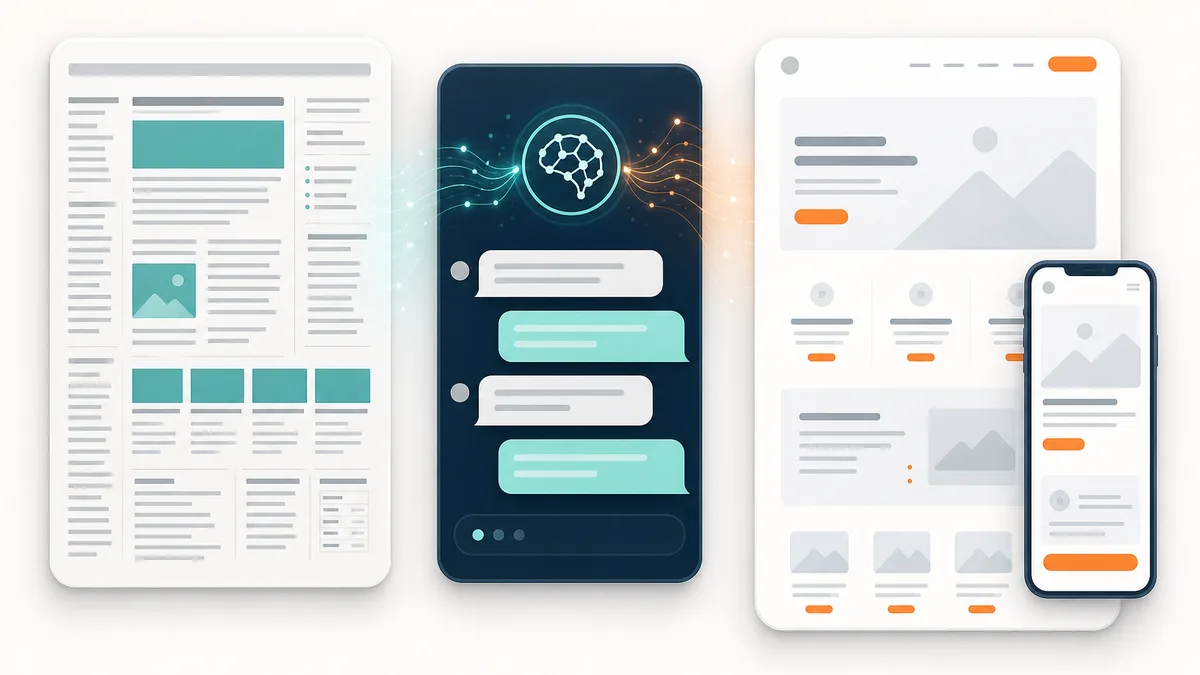
Step 1: Inventory the current website
Before asking AI for a design, make a page inventory. Record every important URL, title, description, contact detail, service, price, form, analytics tag, and conversion action. Mark what must stay, what is outdated, and what needs an owner to confirm it. Save screenshots or a crawl so you can compare the draft with the source.
Step 2: Give AI the source and constraints
Go to playcode.io, start a project, and share the URL or source material you own or are authorized to reuse. Tell the AI who the page is for, which business facts are verified, which content must be reviewed, the desired visual direction, and the one action the page should make obvious.
A publicly accessible WordPress, Wix, Squarespace, or hand-coded page can be useful source material. A password-protected area, product catalog, account system, checkout, or custom integration needs a separate migration plan. A public URL is not permission to reuse someone else's copy, photography, reviews, or brand assets.
If your website has multiple pages, start with your homepage. You can modernize additional pages afterward, one at a time, in the same chat.
Use this exact prompt
"Here is the website I am authorized to redesign: [paste URL]. First inventory the visible pages and business details. Build a modern draft of the homepage, flag anything uncertain, use only content and media I confirm, make the primary action clear, and do not publish or change URLs until I approve the migration checklist."
Step 3: Build one representative page first
Start with the homepage or another page that contains the site's main design system. Ask AI to identify candidate content and produce a draft, then refine the layout before applying it to every page. The draft should make it easy to verify:
- The intended audience and primary action
- Verified business name and contact information
- Current services or products and their descriptions
- Rights-cleared testimonials, reviews, logos, and media
- Navigation and page hierarchy
- Responsive typography, spacing, and interaction states
Treat this page as a design-system pilot. If the hierarchy or tone is wrong, correct it here before multiplying the mistake across the site.
Step 4: Compare the draft with the inventory
Review the draft line by line against Step 1. Do not rely on a visual impression alone. Confirm:
- Names, phone numbers, addresses, hours, services, prices, and legal text are current
- Every reused image, testimonial, logo, and review has the required rights and attribution
- Page titles, descriptions, headings, and canonical URLs match the intended page job
- Changed URLs have an explicit redirect destination
- Forms collect only the data the workflow needs and have a real delivery path
- Analytics, consent, provider, and account dependencies are documented
Step 5: Refine and test the working site
This is where you make it yours. The AI gives you a strong starting point, and you refine it through conversation. Tell the AI what you want changed:
"Make the header background navy blue instead of white."
"Move my phone number to the top right corner - make it big and easy to see."
"Add a 'Book Now' button in the hero section."
"The services section looks good, but change the layout to three columns instead of two."
Use a checkpoint before a major iteration. If something does not look right, you can undo the change and try a different approach. You can also save a checkpoint before making big changes, so you have a saved state to return to.
For tips on getting better results during this step, read our guide on giving AI better instructions for your website.
Then test the actual result: open it on a real phone and desktop, use the keyboard, check text contrast and focus states, submit each form, follow every important link, measure performance, and verify that error and empty states are understandable. A clean screenshot is not a launch test.
Step 6: Switch domains with a recovery plan
Publish only after the content, functionality, metadata, redirects, analytics, and domain plan pass review. Keep the old host or another rollback path available during the cutover. After the domain points to the new site, verify the live pages, forms, redirects, certificates, and analytics again before canceling the old service.
What AI Can Propose and What You Must Verify
AI can read an accessible source, reorganize candidate content, propose a visual system, and iterate on the working page. It cannot know whether every old fact is current, whether every asset is licensed for reuse, or whether a hidden integration has migrated correctly.
Carry these forward deliberately
- Business identity - Confirm the name, logo rights, address, and contacts
- Offers and policies - Revalidate services, prices, hours, and legal text
- Search intent - Preserve useful page jobs, titles, descriptions, and URLs
- Proof - Reuse only authorized testimonials, reviews, and portfolio media
- Operations - Reconnect forms, analytics, consent, providers, and accounts
Use AI to explore these changes
- Layout and hierarchy - Make the primary audience and action easier to see
- Typography and spacing - Improve reading order and responsive behavior
- Navigation - Simplify paths without dropping pages users still need
- Interaction states - Add clear focus, hover, error, loading, and success states
- Page performance - Optimize measured bottlenecks, then remeasure
Three Illustrative Redesign Scenarios
These are planning examples, not Playcode customer case studies or measured outcomes. They show how the inventory and verification work changes with the site.
A bakery with a PDF menu
The design task is straightforward, but the content task is not: confirm current products, prices, hours, allergens, photography rights, and the action behind "Order." The redesigned page can make the menu readable on phones while keeping checkout or order fulfillment with the verified provider.
A home-service site with an urgent call path
The redesign can surface the phone number, service area, and ordinary quote-request path. It should also route immediate hazards to emergency services or a real phone line, avoid remote diagnosis, and never present a request as a confirmed appointment, dispatch, or final quote.
A salon with an old appointment link
A modern gallery and service list still need rights-cleared photos, current prices, and a working booking handoff. Test the provider link or API path, confirmation state, time zone, cancellation copy, and mobile interaction instead of assuming a new button completes the workflow.
Tips for Getting the Best Results from Your AI Redesign
The AI does impressive work out of the box, but these tips will help you get an even better result.
1. Make sure your old site is live and accessible
The AI needs to visit your current website to read the content. Make sure the site is live, not password-protected, and not behind a maintenance page. If your old site is already down, you can still describe your business and content to the AI manually - it just takes a bit more effort on your part.
2. Start with your most important page
Begin with your homepage. It has the most impact and usually contains the core information about your business. Once you are happy with the homepage design and feel, you can recreate other pages (About, Services, Contact) using the same style.
3. Tell the AI about your style preferences
After the initial redesign, give the AI direction on your preferred style. Say things like:
"I want a warm, welcoming feel - not cold and corporate."
"Make it look premium and high-end. Think luxury, not budget."
"Keep it simple and clean. I do not want anything flashy."
The AI understands these descriptions and will adjust the design accordingly - changing colors, typography, spacing, and overall mood to match your vision.
4. Focus on the phone number and call-to-action
For most small businesses, the whole point of the website is to get someone to call, book an appointment, or visit the store. Make sure your phone number is prominent and your main call-to-action button is obvious. Tell the AI:
"My phone number should be the most visible thing on the page. Add a big 'Call Now' button that works on mobile."
5. Check it on your phone
After the redesign, preview the site on your actual phone. Not just the mobile preview in the builder - your real phone. Tap the buttons. Read the text. Try calling the phone number. This is how most of your customers will experience the site, so it needs to feel right on a small screen.
6. Add what was missing from your old site
A redesign is the perfect opportunity to add things your old site was missing. Common additions that make a big difference:
- Online booking or appointment scheduling
- Google Maps embed showing your location
- Customer testimonials or reviews
- Social media links (especially Instagram for visual businesses)
- A clear "About" section with your story
- Service area information for local businesses
Just tell the AI what you want to add:
"Add a testimonials section with these three quotes from my customers: [quotes]."
"Add a Google Maps embed showing my location at [address]."
7. Save a checkpoint before major changes
Once you have a version you like, save a checkpoint. Then experiment freely - try different colors, different layouts, different arrangements. If you go too far and prefer the earlier version, restore the saved point on the supported path. A checkpoint reduces iteration risk; it does not replace backups, content review, or a launch rollback plan.
Common Concerns About AI Website Redesigns
If you are still hesitant, you are not alone. Here are the concerns we hear most often - and honest answers.
"Will it look generic or template-like?"
It can if the brief is generic. Give the AI an audience, content hierarchy, visual references, real constraints, and rights-cleared assets, then review the result. Your actual business facts make the page specific, but they do not automatically make the design good or original.
"What about my Google ranking?"
Any redesign can change search performance. Preserve useful page intent and content, map every changed URL, keep titles and descriptions accurate, test crawlable output and performance, and monitor the live site after launch. No tool can guarantee that rankings stay flat or improve.
"I am not technical - can I really do this?"
You can direct the build in plain language and edit supported elements visually. You still need to make decisions about content, rights, domains, providers, forms, privacy, analytics, and launch readiness. Bring in a specialist when the migration includes systems you cannot safely verify yourself.
"What if I have a lot of pages?"
Start with a representative page, approve the design system, then migrate the rest in a tracked inventory. Avoid publishing a new homepage that links into unfinished or incompatible old paths. For a large site, release bounded sections only when navigation, redirects, and shared dependencies work across the boundary.
Replace the old site without starting over
Turn your existing website into the version you are proud to share
Give Playcode the authorized source, review the facts and migration checklist, and rebuild the design into a modern site you can publish and keep editing.
Frequently Asked Questions
Will I lose my content when I redesign my website with AI?
You should not assume an automatic redesign preserves everything. Inventory the current pages and business facts first, then compare the AI-assisted draft against that inventory before publishing. Review contact details, services, prices, rights-cleared media, forms, metadata, URLs, and analytics deliberately.
How long does it take to redesign a website with AI?
The first draft may appear quickly, but a launch-ready redesign depends on the number of pages, content cleanup, integrations, accessibility checks, redirects, and review. Treat AI as a way to accelerate design and iteration, not as evidence that the migration is complete.
Will a website redesign hurt my Google rankings?
Any redesign can change search performance. Reduce avoidable risk by preserving useful content and page intent, mapping changed URLs to redirects, keeping titles and descriptions accurate, testing crawlable output and performance, and monitoring the live site after launch. No redesign tool can guarantee rankings.
Can AI redesign any type of website?
AI-assisted redesign works best when the source pages are accessible and you are authorized to reuse their content. Protected areas, large catalogs, account data, checkout, custom integrations, and other dynamic systems require a scoped migration and separate testing.
How much does it cost to redesign a website with AI vs hiring a designer?
The total depends on scope, content cleanup, integrations, migration work, and who reviews the result. AI can reduce the effort needed to create and revise a design, but it does not remove domain, provider, testing, or specialist costs. Check current Playcode pricing separately from the total project budget.